Handwritten captions
Captions are read from each screenshot, on your Mac. Nothing is uploaded.
Free Mac app by 1xAI
Every screenshot, printed into a little pile in the corner of your screen.
Open this page on your Mac to download.
Free · macOS 14 Sonoma or later · Apple silicon and Intel
The problem
You take a screenshot, the preview disappears before you can drag it anywhere, and the file gets lost on a Desktop full of Screenshot 2026-10-08 at 5.41.12 PM.png.
How it works
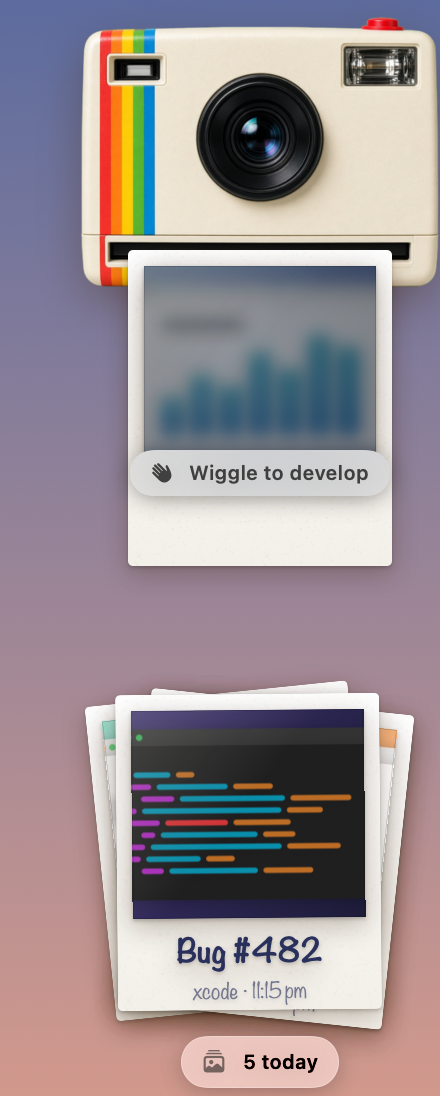
Take a screenshot as usual (⇧ ⌘ 4). A little instant camera in the corner prints it like a Polaroid, feeding it out of the slot. Wiggle the pointer to develop it faster.
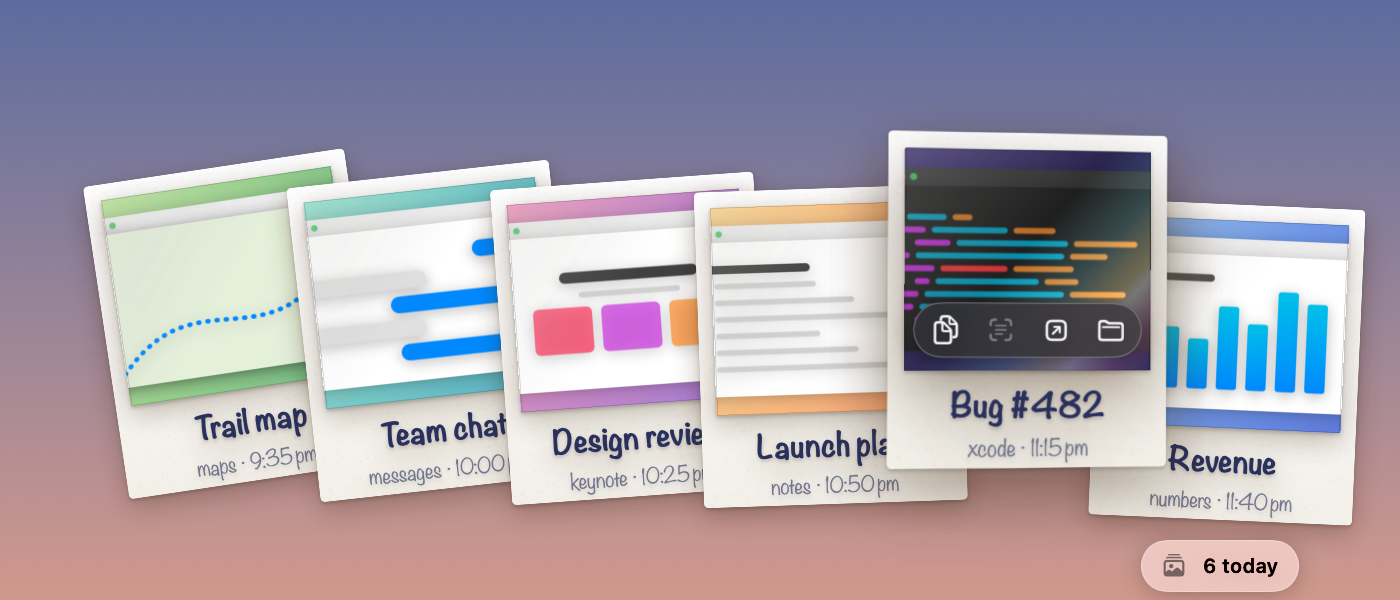
Prints land on a pile in the corner. Hover to fan them out, newest first, with quick actions on each print.
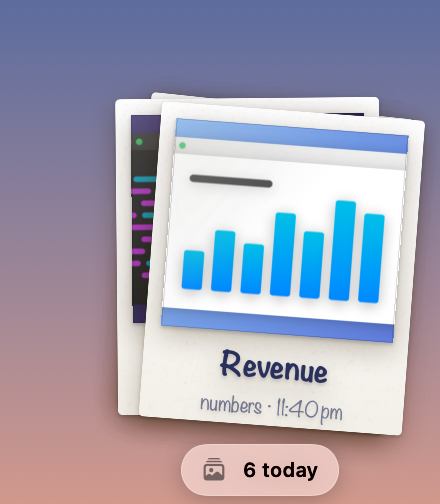
Drag any print into Slack, Mail, Figma, or Finder. Double-click to open it.
Features
Where’d It Go? lives in your menu bar and stays out of the way until you take a screenshot.
Captions are read from each screenshot, on your Mac. Nothing is uploaded.
Hover a print for Copy, Copy Text, Open, and Show in Finder. No right-click needed.
Its lens follows your pointer, and each print slides out of the slot with a soft paper hush.
Sweep the pile away with a swish and a poof, and undo if you change your mind. Your files are never touched.
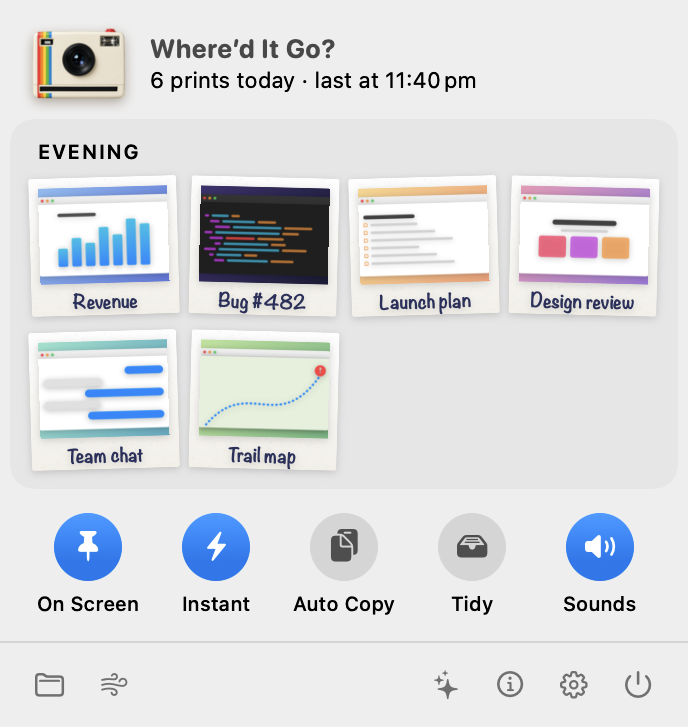
Today’s prints as a contact sheet, grouped into morning, afternoon, and evening.
Works with any screenshot folder, Reduce Motion, VoiceOver, and launch at login.
Fresh off the press
Each print takes about two seconds to leave the slot. It curls out as a flexible sheet that sags under its own weight, then drops flat and starts developing.
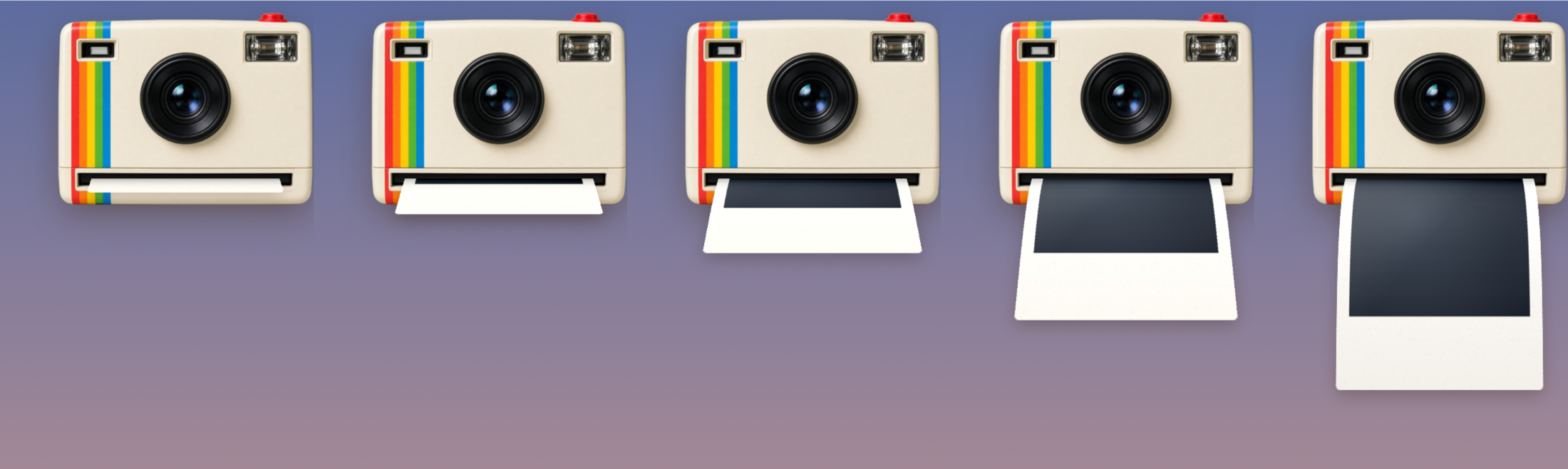
A camera with personality
The lens follows your pointer, and each print slides out of the slot with a soft paper hush. Done for the day? Sweep the pile away, or undo if you change your mind. Your files are never touched.
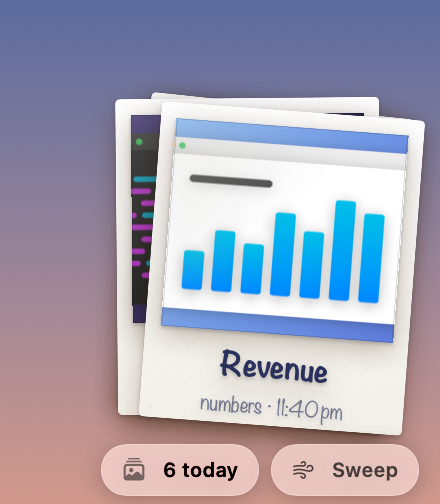

The menu bar
Click the camera in the menu bar for a contact sheet of today’s prints. Open one with a click or drag it anywhere. Round switches keep the pile on screen, print instantly, copy each shot, tidy the Desktop, and turn sounds on or off.
Install
Download WheredItGo.zip and open it.
Drag Where’d It Go.app into Applications.
Open it. The first time, macOS may say it can’t verify the developer. Go to System Settings › Privacy & Security and click Open Anyway. You only do this once.
Allow access to your Desktop (or wherever screenshots are saved) when asked.
Tip: Turn off macOS’s floating screenshot thumbnail in the app’s welcome tour, so prints appear instantly.
Privacy
No account, no network access, no analytics. Text recognition runs on your Mac.