Built around your bottle
500, 600, 750, or 1000 ml, or any size in 50 ml steps. Sip counts bottles, not sips, so it only ever asks: is it empty?
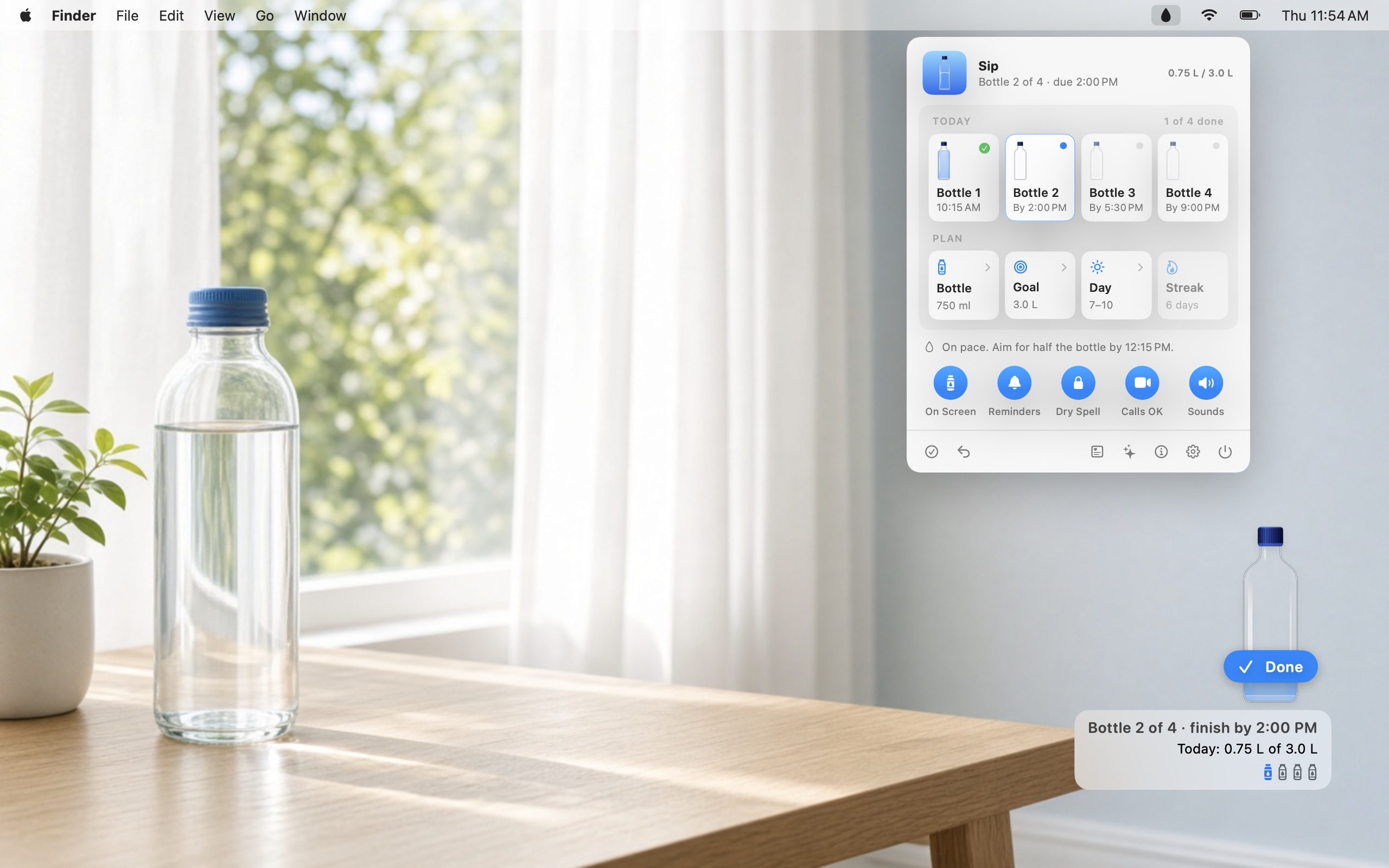
Sip puts a water bottle in the corner of your screen and splits your day into bottles. Finish each one on time, or your Mac takes a short water break.
Open this page on your Mac to download.
Free · macOS 14 Sonoma or later · Apple silicon and Intel
The problem
You know you should drink more water. You fill your bottle in the morning, and reminder apps don’t help, because a notification is easy to swipe away.
How it works
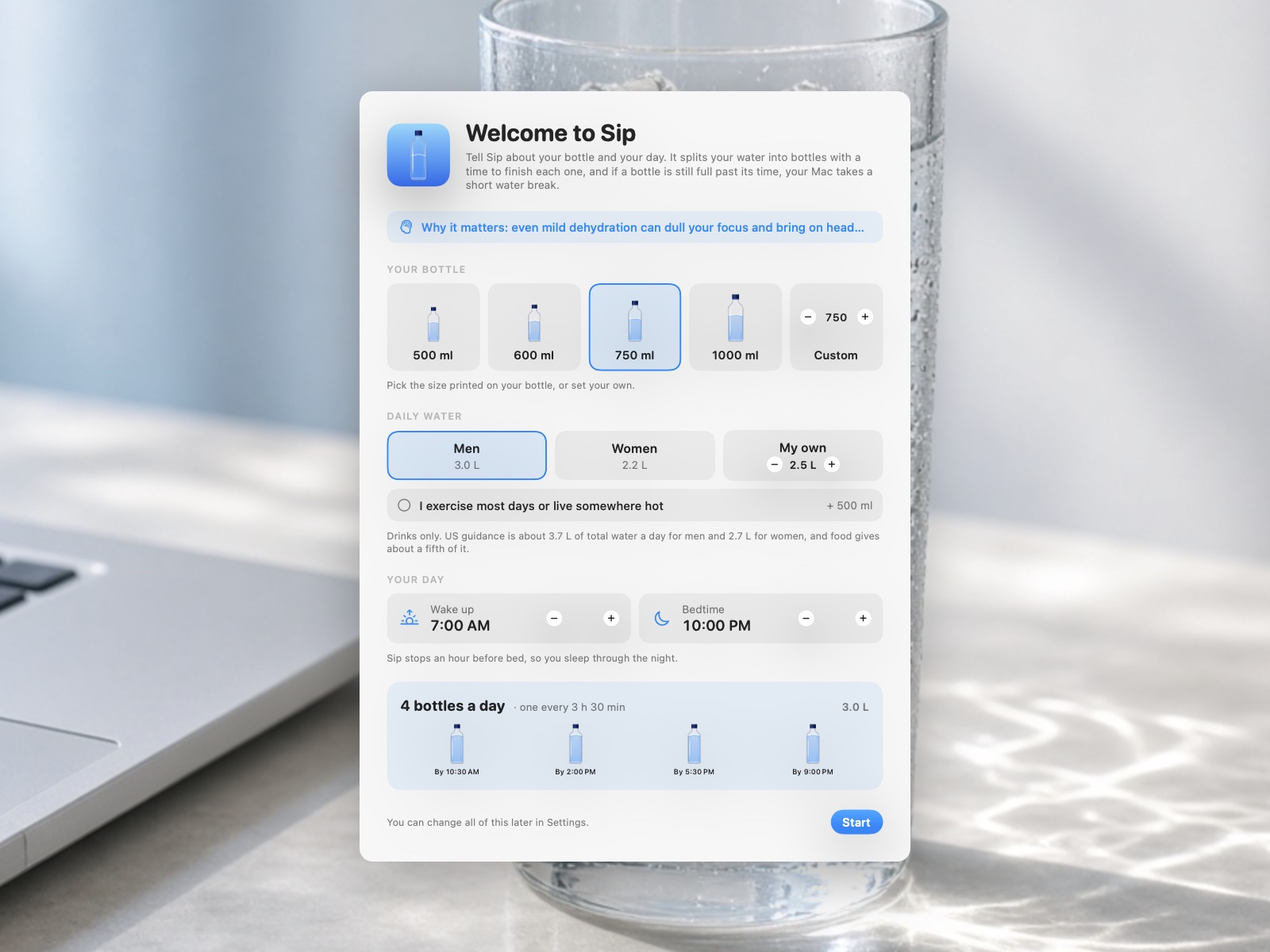
Pick the bottle you own, your daily goal, and when you wake up and go to bed. Sip splits the goal into bottles, each with a time to finish it.
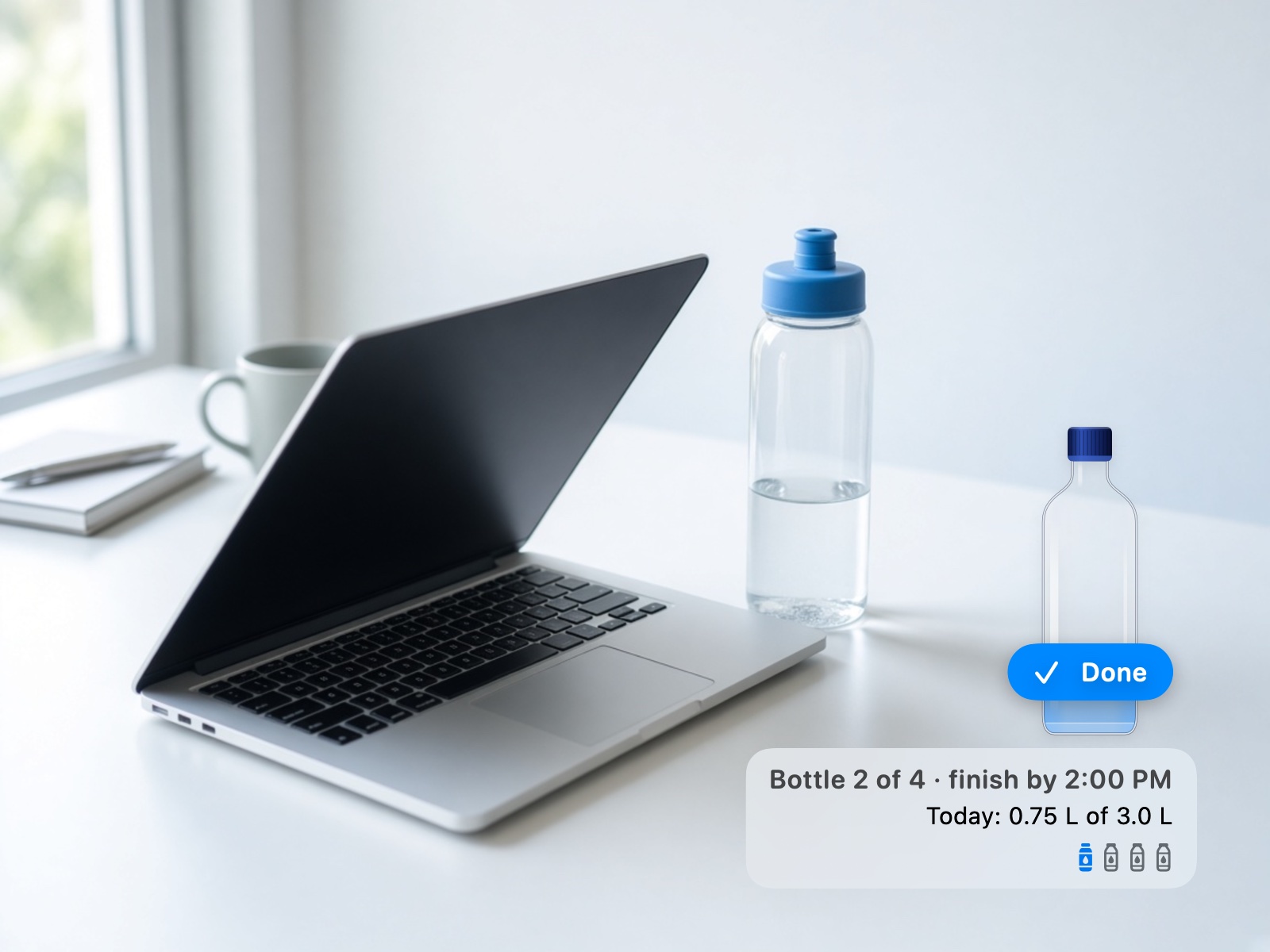
When your real bottle is empty, hover over the one on screen and click Done. It fills by one bottle toward today’s goal.
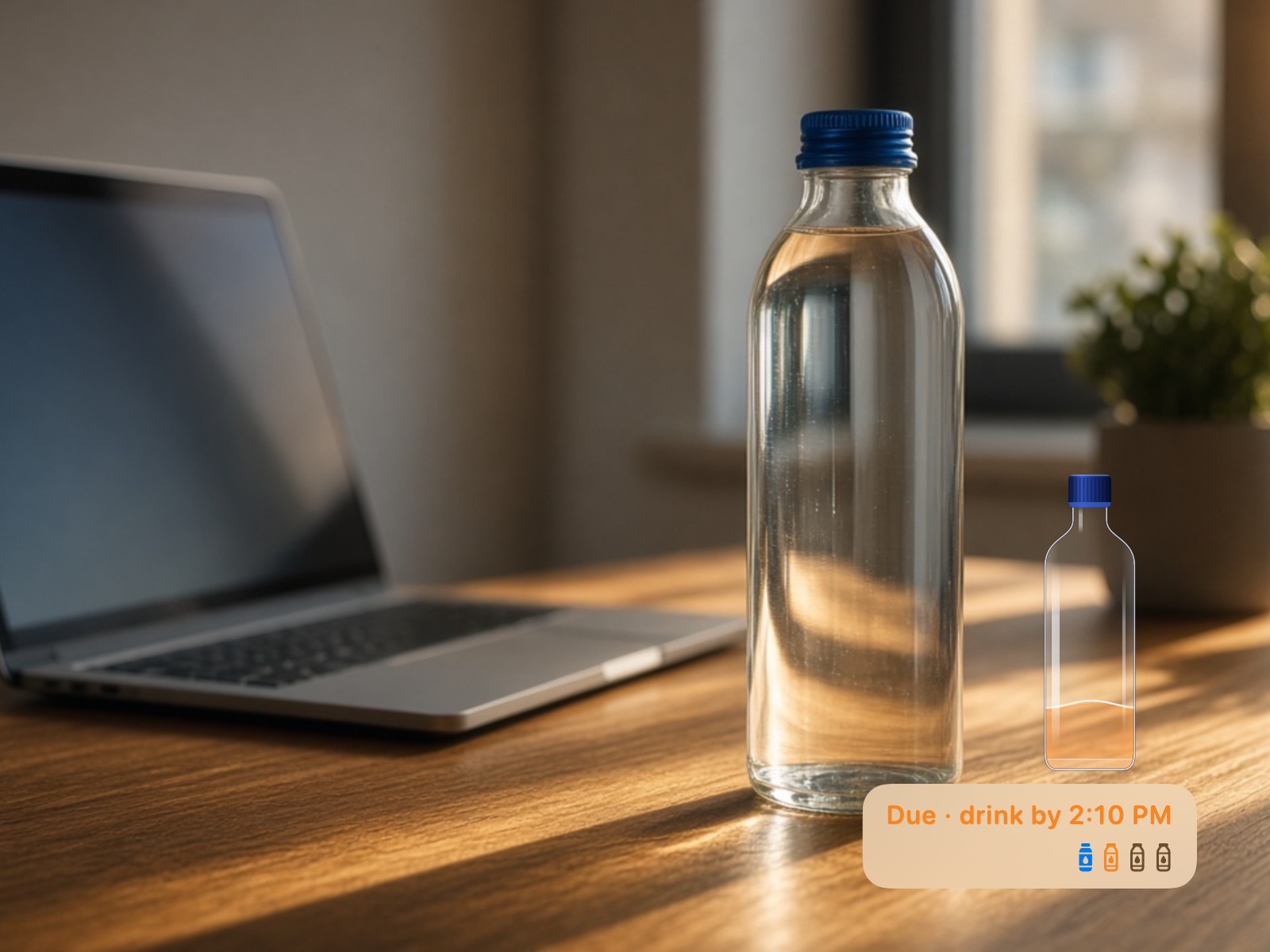
When a bottle is due, Sip’s turns orange. Ten minutes past due and still not empty? Your Mac takes a 15-minute water break until you finish it.
Features
Sip lives in the corner of your screen and the menu bar, and only gets firm when a bottle is overdue.
500, 600, 750, or 1000 ml, or any size in 50 ml steps. Sip counts bottles, not sips, so it only ever asks: is it empty?
On a MacBook the water stays level as you tilt the laptop and sloshes when you bump it or drag the bottle. No permissions needed.
Drag the bottle wherever you like. Five seconds after you stop hovering, it tucks into a small row of bottles.
No banners. Halfway through a bottle its bar wiggles with a soft sound; when it’s due, it turns orange with a chime.
No lock while your camera or microphone is on, while you’re away from the Mac, or in the hour before bed.
One click on Bottle’s empty ends the break. Hold the bottom of the lock screen for three seconds in an emergency.
The Dry Spell
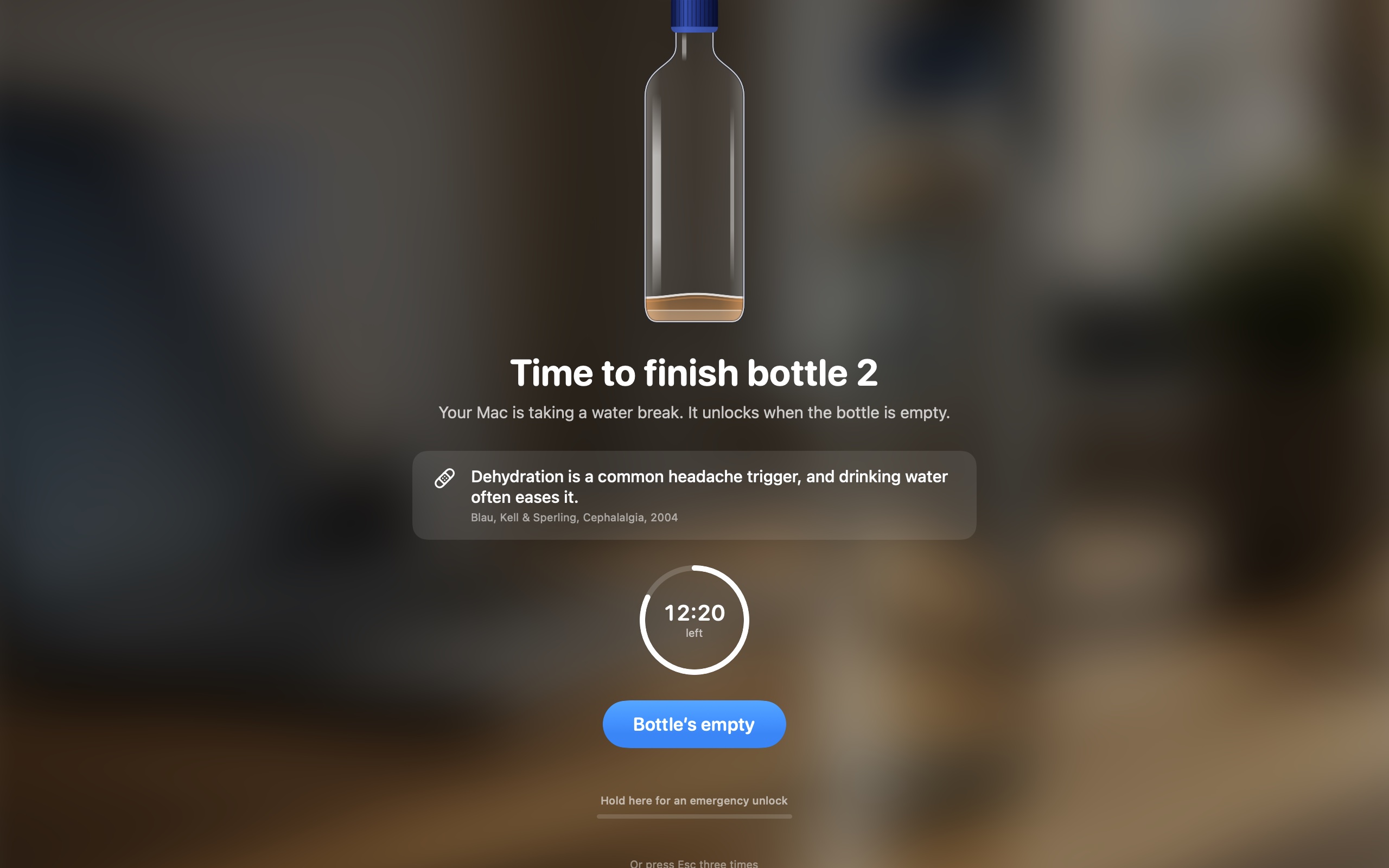
If a bottle still isn’t empty 10 minutes after it’s due, every display goes behind frosted glass for 15 minutes. The Dock and menu bar hide and app switching is off. One click on Bottle’s empty ends it right away.
Choose a 5 to 20 minute lock and a 5 to 30 minute grace period, or turn the Dry Spell off and keep just the reminders.
Why water
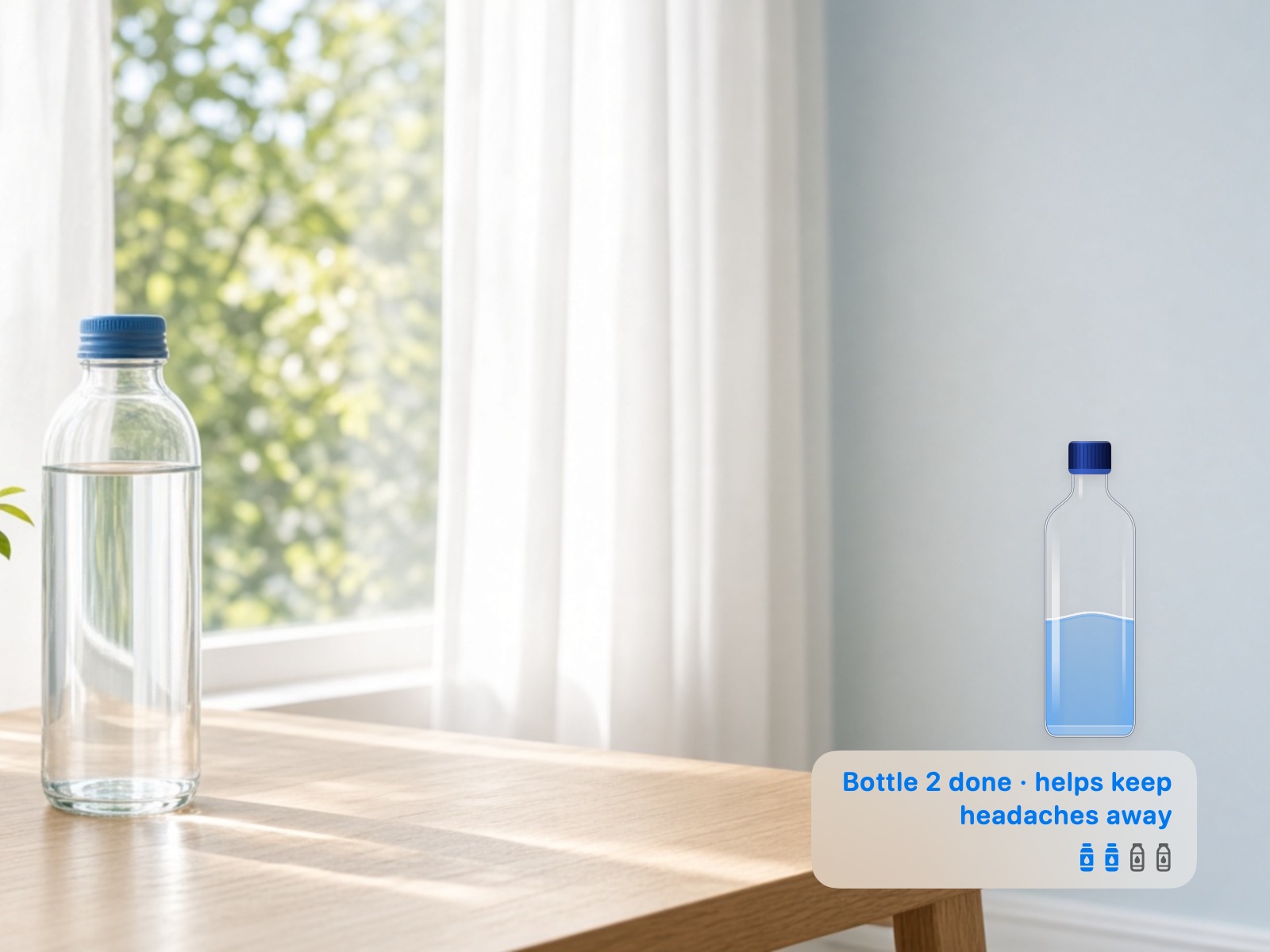
The lock screen shows one short fact about what water does for you, with its source. Finish a bottle and its caption says what it’s good for, like “Bottle 2 done · helps keep headaches away”.
Only what the evidence supports: focus and mood, headaches, kidney stones, keeping cool, digestion, bladder infections, and feeling full. No claims about flushing toxins or clearing skin.
The menu bar
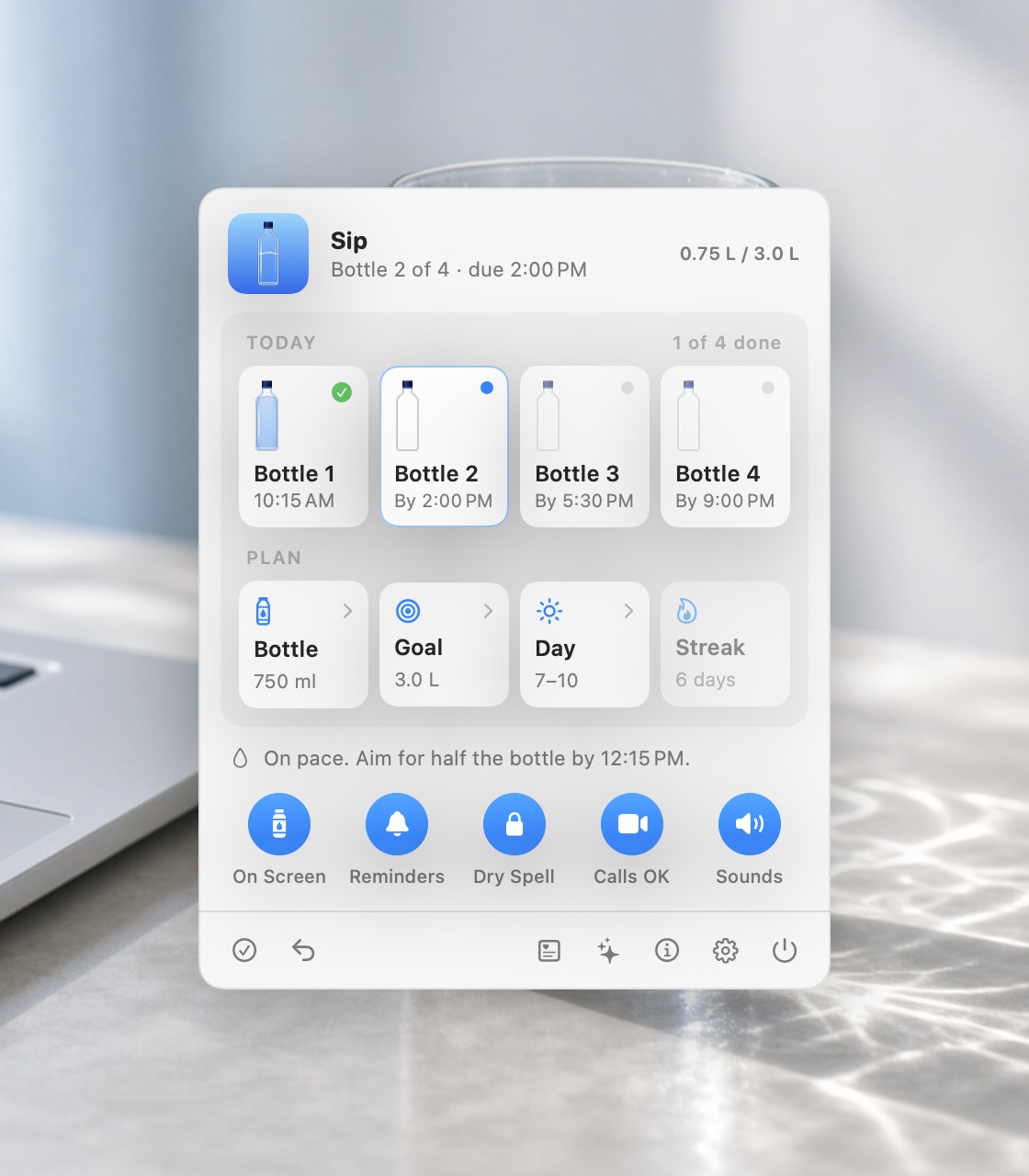
Click the water drop in the menu bar, or Sip’s icon in the Dock, for every bottle of the day, your plan, and your streak. Round switches keep the bottle on screen and turn reminders, the Dry Spell, calls, and sounds on or off.
Install
Download Sip.zip and open it.
Drag Sip.app into Applications.
Open it. The first time, macOS may say it can’t verify the developer. Go to System Settings › Privacy & Security and click Open Anyway. You only do this once.
Pick your bottle, your goal, and your day, then click Start.
Tip: Don’t see the water drop in the menu bar? A full menu bar hides it behind the camera notch. Click Sip’s Dock icon instead.
Sip isn’t medical advice. If you have kidney or heart problems, or take water pills, ask your doctor how much to drink.
Privacy
No account, no network access, no analytics. Sip needs no permissions.